When someone finds your business on Google Maps, the first thing they usually do is look. Before reading a review or checking opening hours, they swipe through the pictures to answer a few quick questions: is this place real, does it look tidy and professional, and is it the sort of business I want? Photos and short videos answer those questions faster than any amount of text.
Yet the images on many local profiles are an accident: a blurry shopfront from years ago, a logo stretched to fill the cover slot, and whatever customers happened to upload. The business never chose what people see, so others chose for it.
This guide explains which photos and videos to add, the technical rules Google sets, how to take good pictures with nothing more than a phone, how to handle customer uploads and privacy, and how imagery fits into your visibility on Google Maps and in AI assistants.
Key points
- Photos are often the first thing customers look at, so choose them deliberately rather than leaving it to chance.
- Google accepts JPG or PNG photos between 10 KB and 5 MB, and videos up to 30 seconds and 75 MB at 720p or higher.
- The most useful set covers your exterior, interior, team, real work or products, and anything customers need to recognise on arrival.
- Google wants images that represent reality, so avoid stock photos, heavy filters and misleading edits.
- Get permission before showing customers, their homes or their children, and make sure you own or are licensed to use every image.
In this guide
- Why photos matter so much on a local profile
- The three kinds of image Google recognises
- What to upload: a shot list by business type
- Google’s technical requirements
- Taking good photos with a phone
- Short videos: what works in 30 seconds
- Customer photos and what you can do about them
- Privacy, permissions and ownership
- Stock, AI-generated images and other shortcuts
- How often to add new photos
- How photos affect Google Maps and local search
- How photos help with AI assistants
- Frequently asked questions
- Final thoughts
Why photos matter so much on a local profile
A Business Profile is a shop window that people look through on a small screen, often while comparing two or three options side by side. Photos shape that comparison in a few practical ways.
- They build trust. Real pictures of premises, staff and finished work show that a business exists and takes care. Thin or poor imagery raises doubts, especially for higher-value jobs.
- They set expectations. A customer booking a table, a treatment or a showroom visit wants to know what they are walking into. Photos reduce surprises and the questions that come with them.
- They help people find you. A clear exterior shot means a customer recognises your door when they arrive, which matters for businesses on busy streets, in retail parks or up a side alley.
None of this is about ranking tricks. Good imagery mainly turns profile views into calls, visits and enquiries.
The three kinds of image Google recognises
Google’s help pages describe three types of photo on a profile.
Logo
Your logo helps customers recognise the business. Google notes that it is highlighted when the profile has basic information such as a phone number and opening hours, and that a missing logo can be a sign the profile lacks a name, a valid address, categories, a phone number or hours. Use a clean, square version of your logo on a plain background.
Cover photo
The cover photo is intended to represent the business best. Choose a real photograph rather than your logo or a graphic. Be aware that Google says the cover may not always appear first, and that if your chosen cover is low quality, or other sources suggest it is not the best representation, a customer photo may be shown instead. A sharp, well-lit, accurate cover photo makes that less likely.
Business photos
Everything else falls into this group: exterior, interior, products, services, team and work. This is where most of your effort should go.
What to upload: a shot list by business type
The right mix depends on whether customers come to you, you go to them, or both. Use this as a starting checklist.
| Photo | Premises businesses (shops, cafés, salons, showrooms) | Mobile and trade businesses |
|---|---|---|
| Exterior | Front of the building from across the street, and close enough to read the sign | Branded van or vehicle, if you have one |
| Arrival details | Entrance, parking, step-free access, nearest landmark | Not usually needed |
| Interior | Main space from the doorway, waiting area, displays | Workshop or yard, if customers ever visit |
| Team | Staff at work, in uniform where relevant | You or your team on a job, with tools and kit |
| Work or products | Best-selling items, finished treatments, dishes, displays | Completed jobs, ideally with a before and after |
| Detail | Quality of materials, finishes, packaging | Neat pipework, clean edges, tidy site |
A bathroom showroom, for example, might start with its frontage and car park, a wide shot of the display floor, close-ups of three or four popular showers and basins, a designer at the consultation desk and a few photos of fitted bathrooms in customers’ homes. A plasterer might show a van, two or three finished rooms, a close-up of a smooth ceiling and a photo of dust sheets and protection laid out properly, which reassures customers about mess.
Images that rarely help include screenshots of reviews or certificates, text-heavy promotional graphics that date quickly, and near-identical shots of the same thing.
Tip
Look at your profile on your phone, swipe through every image and ask, “Would this make a stranger more or less likely to call?” Delete anything that gets a “less”.
Google’s technical requirements
Google’s help page on managing Business Profile photos and videos sets out the current requirements.
| Item | Requirement |
|---|---|
| Photo format | JPG or PNG |
| Photo file size | Between 10 KB and 5 MB |
| Photo resolution | Recommended 720 x 720 pixels, minimum 250 x 250 pixels |
| Photo quality | In focus, well lit, no significant alterations or excessive filters |
| Video length | Up to 30 seconds |
| Video file size | Up to 75 MB |
| Video resolution | 720p or higher |
A few practical notes follow from these rules. Photos straight from a modern phone are often larger than 5 MB, so you may need to export a smaller version or let your phone’s sharing options reduce the size. Uploaded images are reviewed against Google’s policies and can take 24 to 48 hours to appear. Photos and videos only show once your profile is verified. Businesses with ten or more locations can bulk upload photos using a spreadsheet.
Taking good photos with a phone
For most profile images, a recent phone and a little care will do.
- Clean first. Tidy the counter, straighten stock, move bins and boxes out of shot, and wipe the lens.
- Use daylight. Shoot exteriors on a bright, overcast day to avoid harsh shadows. Indoors, open blinds and turn on every light.
- Hold the phone level. Tilted verticals make rooms look odd. Turn on the grid in your camera settings and line up door frames and walls.
- Shoot wide and close. Take one wide shot to show the space and a few close-ups to show quality.
- Use landscape for spaces and square-friendly framing for products. Google crops images differently on different screens, so keep the important part near the centre.
- Skip the filters. Light corrections to brightness and straightening are fine. Heavy filters and beauty effects conflict with Google’s guidance that images should represent reality.
- Include people where it helps. A designer talking a customer through samples tells a richer story than an empty room, provided everyone pictured has agreed.
Short videos: what works in 30 seconds
Google accepts videos of up to 30 seconds. That is enough to show something a photo cannot: movement, scale, sound or a process.
Good ideas include:
- A walk-through. Enter from the street and pan slowly round the main space, so a customer knows what to expect.
- A process clip. Coffee being poured, a bike wheel being trued, a tile being cut, a dog being dried. Short, real and satisfying to watch.
- A finished job reveal. A slow pan round a completed kitchen, garden or bathroom.
- A quick introduction. The owner saying, in one or two sentences, what the business does and who it is for.
Keep the phone steady, film in landscape, avoid music you do not have the rights to use, and leave contact details and prices to the profile itself.
Customer photos and what you can do about them
Customers can add their own photos and videos to your profile, and they often do. Many are helpful: a diner’s photo of a dish or a guest’s shot of a garden gives an honest, independent view.
You cannot delete customer uploads yourself, but you can request removal of ones that break Google’s policies, such as images that are offensive, irrelevant to your business or show private information. A photo that is merely unflattering is unlikely to be removed.
The more effective response is to add plenty of recent, accurate photos of your own, so poor images are outnumbered and the overall picture is fair. Keep an eye out for images that reveal a problem you can fix, such as a shabby sign or a full bin by the entrance.
Privacy, permissions and ownership
Photos of identifiable people can be personal data under UK GDPR, so treat them with care.
- Staff. Ask before featuring team members, and remove photos if someone leaves and asks you to.
- Customers. Get clear agreement before showing a customer in a photo or video. A quick written message is better than a verbal nod.
- Children. Avoid showing children unless a parent has given explicit permission, and think twice even then.
- Customers’ homes. For trades and home services, crop out house numbers, number plates, family photos and anything that reveals a location.
- Copyright. Only upload images you took yourself or have permission to use. If a professional photographer took them, check your licence covers online business listings. Manufacturer images may be covered by their own terms.
Tip
Add a line to your quote or booking form asking whether customers are happy for photos of the finished work, without personal details, to be used online. It saves awkward conversations later.
Stock, AI-generated images and other shortcuts
Stock photos and AI-generated images are a poor fit for a Business Profile. Google’s guidance asks for images that represent reality, and customers quickly notice when a “local” business is illustrated with a generic smiling team or a showroom that does not exist. A misleading image can also create problems under consumer protection law if it gives a false impression of what you offer.
You will also come across claims that adding location data to photo files, renaming files with keywords or uploading hundreds of images at once will improve rankings. Google has never said any of these work, and there is no good reason to rely on them. The value of photos lies in what customers see, not in hidden file details.
How often to add new photos
Aim for a steady flow rather than a single big upload. A few new images each month keeps the profile current and gives returning visitors something new. Always add photos promptly after:
- A refurbishment, new signage or a change to the shopfront.
- A new product range, menu, display or service.
- A seasonal change customers care about, such as an outdoor seating area opening or a Christmas display.
- Staff changes, if your team appears in existing photos.
Remove anything out of date, such as a display you no longer have.
How photos affect Google Maps and local search
Google’s local rankings depend mainly on relevance, distance and prominence: your categories, services, reviews, website and how well known you are. Google has not said that photos are a direct ranking factor, and adding more images will not, on its own, move you up the map.
What photos do is influence behaviour once you appear. On the map, a customer sees a handful of businesses with a rating, a category and a thumbnail. A clear, attractive image and a profile full of genuine pictures make people more likely to tap, call, ask for directions or visit your website. Those actions are what you want, and they reflect how useful your profile is to real people.
Photos also back up the rest of your profile. A services list that mentions walk-in showers is more convincing with pictures of them nearby, and images of an accessible entrance support the accessibility attributes you have set.
Photo work is one strand of a wider routine that includes reviews, accurate listings and a useful website. If you would like support with that, our local SEO management for small businesses covers your Business Profile alongside website and listings work. Profile and listing improvements can help within weeks, and most businesses see clear improvements within two to three months, with very competitive areas taking longer.
How photos help with AI assistants
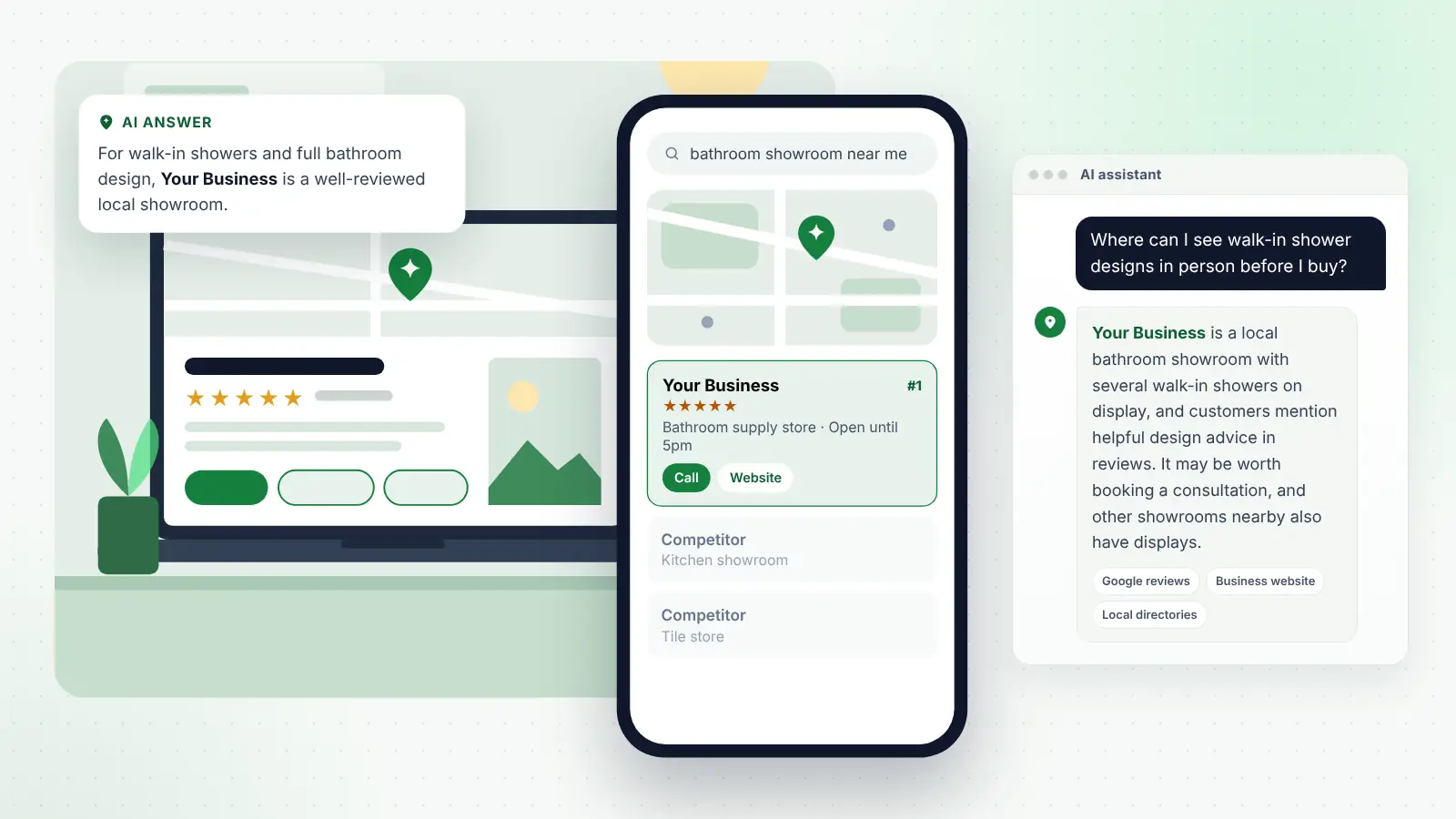
People increasingly ask ChatGPT, Gemini, Copilot, Perplexity and Google’s AI Overviews questions such as “Where can I see walk-in showers in person near Reading?” or “Is there a café near me with step-free access and space for a pushchair?” The answers come from information these tools can find and interpret.
AI assistants mostly rely on text: your profile details, your website, reviews and mentions elsewhere. Photos play a supporting part.
- They encourage specific reviews. Customers who see your displays or finished work often mention them in reviews, and detailed reviews give assistants concrete facts to repeat.
- They pair well with descriptive text on your website. A gallery page where each image has a short caption and descriptive alt text (“walk-in shower with a low-profile tray in our Reading showroom”) gives search engines and AI tools words to work with.
- They support accurate facts. Pictures of parking, entrances and facilities back up the details you state in text. If an assistant is asked about access or parking, it relies on that written information, so state it clearly and keep it consistent everywhere.
The lesson is simple: show it in pictures, then say it in words. An image of your accessible entrance helps a customer; a sentence on your website and profile saying “step-free access from the car park” helps both the customer and any AI tool trying to answer a question about you.
Frequently asked questions
How many photos should my profile have?
There is no official target. Aim for enough to cover the outside, the inside, your team and a good range of your work or products, then add a few each month. Quality and relevance matter more than the total.
Why is my photo not showing?
New uploads are reviewed and can take 24 to 48 hours to appear. Check that your profile is verified, that the file meets Google’s size and format rules, and that you have not uploaded a duplicate. A “Not approved” status means the image was judged to break a policy.
Can I choose which photo appears first?
You can set a cover photo, but Google may not always show it first and may use a different image if it judges yours to be low quality. A sharp, accurate cover photo gives you the best chance.
Should I pay for professional photography?
It is worthwhile where appearance drives the decision, such as showrooms, restaurants and venues. For most trades, careful phone photos of real work are fine and easier to keep current.
Can I use photos from my suppliers or manufacturers?
Only if their terms allow it, and even then your own photos are better. Customers want to see your premises and your work, not a catalogue image they could find anywhere.
Final thoughts
Your profile’s photos are a first impression you can control. Choose a strong cover photo and a clean logo, build a set of real images showing your premises, people and work, add a few short videos where movement helps, and refresh them regularly. Respect privacy and copyright, avoid stock and heavily edited images, and back up what you show with clear written details on your profile and website. Done well, imagery will not replace reviews or a good website, but it will make far more of the people who find you decide to get in touch.