For most local businesses, the Google Business Profile does more work than any other piece of marketing. It is what appears on Google Maps and in the map results at the top of local searches, and it is often where a customer decides whether to ring you before they have even looked at your website. It is free, it takes a few hours to set up properly, and it is routinely neglected.
The difference between a basic profile and a well-optimised one is rarely one big change. It is a long list of small details done carefully: the right category, an accurate service area, a full list of services, recent photos, regular updates and prompt replies to reviews. Together they help Google understand what you do and help customers trust you.
This guide walks through each part of the profile in order, explains what Google’s guidelines allow, and flags the mistakes that most often lead to poor visibility or, worse, a suspended listing. Google changes its features regularly, so where something has changed recently, we say so.
Key points
- Use your real trading name exactly as it appears in the real world; adding keywords breaks Google’s rules.
- Your primary category is one of the strongest ranking signals, so choose the most specific one that fits.
- Service-area businesses should hide their address and list up to 20 real towns or districts they cover.
- A complete services list, a clear description and regular genuine photos all improve relevance and trust.
- Google has been replacing the old public Q&A section with an AI feature that draws on your profile, website and reviews.
- Most suspensions come from guideline breaches such as virtual offices, keyword-stuffed names or duplicate profiles.
In this guide
- Before you start: claim, access and verification
- Step 1: Get your business name right
- Step 2: Choose your categories carefully
- Step 3: Set your location, contact details and hours
- Step 4: Write a description and list your services
- Step 5: Add photos and posts regularly
- Step 6: Reviews, replies and the changing Q&A section
- How your profile feeds AI search
- Avoiding suspensions and handling them if they happen
- Keeping your profile in good shape
- Frequently asked questions
- Final thoughts
Before you start: claim, access and verification
If you have never claimed your profile, search for your business on Google Maps first. A listing may already exist, created by Google or a customer. If it does, claim it rather than creating a new one, because duplicates cause problems later.
Who should own the profile
Make sure the owner of the profile is the business owner, using an email address the business controls for the long term. If a member of staff, web designer or agency needs access, add them as a manager rather than sharing your login. That way you can remove access whenever you need to, and you never lose control of the profile if someone leaves.
How verification works
Google needs to confirm you are a genuine business at the location you have given. It decides which verification methods are available to you, and you cannot choose freely. Current options include a phone call or text, email, a recorded video, a live video call with a Google representative, or a postcard sent to your address.
Video verification has become common. You will typically be asked to show, in one continuous recording or call, your location (street signs, nearby businesses or your shopfront), evidence of your business such as branded equipment, stock or tools, and proof that you manage it, such as opening up with your keys or showing a staff-only area. For a business working from a van, that usually means showing the van’s branding, your tools and the area you are based in.
Tip
While you are waiting for verification, do not edit your business name, address or category. Changes can reset the process or invalidate a postcard code. Google says reviews of verification submissions can take up to five working days.
Step 1: Get your business name right
Your business name on Google should match the name you use in the real world: on your signage, vans, website, invoices and letterhead. Google’s guidelines are explicit that unnecessary information is not allowed in the name. That includes locations (“Smith Plumbing Bristol” when your real name is “Smith Plumbing”), service descriptions (“Smith Plumbing and Emergency Boiler Repairs”), taglines, phone numbers and website addresses.
Many businesses add keywords because they have seen competitors do it and rank well. It is tempting, but it carries real risk. Keyword-stuffed names are one of the most common reasons for profile suspensions and for edits being made by Google or by competitors who report them. If your registered trading name genuinely includes a service or a place, that is acceptable, but it should be your real name, used consistently everywhere.
Step 2: Choose your categories carefully
Categories tell Google what your business is. Your primary category is one of the most influential settings on the whole profile, so it is worth time.
- Search for the main service you want to be found for and look at which categories the top-ranking competitors use. Tools that show competitor categories can help, or you can check their listings directly.
- Pick the most specific primary category that describes what your business is. “Emergency locksmith service” is more useful than a broader category if that is genuinely what you do.
- Add secondary categories only for other things your business actually is. A cafe that also operates as a bakery might add “Bakery”. A cafe that simply sells cakes should not.
- Avoid using categories as keywords or to describe features. Google’s guidance is that categories describe what the business is, not what it has or sells.
Fewer, accurate categories are better than a long list of loosely related ones.
Step 3: Set your location, contact details and hours
Address or service area
How you set this depends on whether customers come to you.
| Type of business | Address | Service area |
|---|---|---|
| Customers visit your premises only (shop, salon, cafe) | Show it | Not needed |
| You visit customers and they never come to you (most trades, mobile services) | Hide it | Add the areas you serve |
| Both (a garage that also offers call-outs) | Show it | Add the areas you serve |
A few rules matter here:
- Use a real, staffed location. Virtual offices and mail-forwarding addresses are not eligible. Co-working spaces only qualify in limited circumstances, such as permanent signage and staff available to customers during your hours.
- Hide your address if you work from home and customers do not visit. Your profile will still appear in local results.
- Be realistic with your service area. Google allows up to 20 service areas and says the overall area should not extend beyond about two hours’ driving time from your base. You cannot set a radius, and Google asks you to be as specific and accurate as possible, so in the UK list the towns, cities, districts or postcode areas you genuinely cover rather than “England” or “United Kingdom”.
- One profile per real location. If you have two branches with their own staff and premises, each can have a profile. A second profile at an address where you have no real presence is a guideline breach.
Phone, website and hours
These details are simple but frequently wrong.
- Phone number. Use a number that reaches this location directly. A local landline or mobile is generally better than a central call centre. If you use call tracking, many businesses set the tracking number as the primary number and add their main number as an additional phone, so the real number still appears in Google’s data.
- Website. Link to the page most relevant to this location. For a single-site business that is usually the homepage; for a multi-location business it should be the specific branch page.
- Opening hours. Set regular hours and add special hours for bank holidays and Christmas well in advance. Appointment-only businesses can say so.
- Booking or quote links, where available for your category, should go to a page that actually lets people book or enquire.
- Opening date should be your real date. If you are about to open, a future date lets the profile show customers that you are opening soon.
Google’s original Business Profile chat feature was withdrawn in 2024. In some regions you can now add a WhatsApp or text messaging option to your contact details instead, but it is not available for every profile, so make sure customers also have another quick way to reach you, such as a phone number that is answered or a simple enquiry form on your website.
Step 4: Write a description and list your services
The business description
You have up to 750 characters to describe your business. Use them to explain plainly what you do, who you do it for, the areas you cover and anything that genuinely sets you apart, such as qualifications, accreditations or years trading. Write for a customer, not a search engine. Do not include links, promotional claims you cannot support or lists of keywords.
Services and products
The services section is one of the most underused parts of the profile. Google suggests some services based on your categories; add any that are missing as custom services. Give each a short, specific description. A plumber might list boiler servicing, leak repairs, bathroom installation, radiator replacement and unblocking drains, each with a sentence explaining what is included.
Retail businesses and some others can also add products, with photos and descriptions. Food businesses can add menus. Both give Google more information to match you to detailed searches.
Attributes
Attributes are tick-box features such as wheelchair-accessible entrance, free Wi-Fi or appointment required. Which ones are offered depends on your category and country. Some are set by you and some come from customer feedback. Complete the ones that apply honestly.
Step 5: Add photos and posts regularly
Photos
Photos affect how much people engage with your profile. Customers want to see what your premises look like, who they will be dealing with and examples of your work.
A good starting set includes:
- Your logo and a cover photo that represents the business well.
- The outside of your premises, including signage, so people recognise it when they arrive.
- The inside, if customers visit.
- Your team at work.
- Real examples of finished jobs, products or dishes.
- Vehicles with branding, for mobile businesses.
Use genuine photos rather than stock images, keep them well lit and reasonably sized, and add new ones regularly. A handful each month is better than fifty in one day and nothing for a year. Customers can also upload photos; check these occasionally and report any that are inappropriate or not of your business.
Posts
Posts are short updates that appear on your profile. You can share news, offers, events and recent work. They do not appear to be a strong ranking factor on their own, but they show customers that the business is active, and they give you a place to highlight seasonal services or new offerings.
Practical ideas for posts:
- A recent job with a photo and a sentence about the problem solved.
- Seasonal reminders, such as boiler servicing before winter or garden clearance in spring.
- Changes to opening hours or new services.
- Local events you are attending or sponsoring.
Aim for a realistic rhythm you can keep up, such as one or two posts a month.
Step 6: Reviews, replies and the changing Q&A section
Reviews are covered in detail in their own guide, but they belong in any profile checklist. Use the review link or QR code available from your profile to make asking easy, and reply to every review politely and personally. Never offer incentives for reviews, ask only happy customers or set staff targets for numbers of reviews, all of which Google prohibits.
The old public questions and answers section, where anyone could ask and answer questions on your listing, has been phased out by Google since late 2025. In its place, Google Maps has been introducing an AI-powered feature that answers customer questions using information from your profile, your website, reviews and other sources. How this appears varies by region and device, and Google is still developing it.
The practical response is the same either way: make sure the facts customers ask about, such as prices, parking, access, payment methods and response times, are clearly answered on your website and accurately set on your profile. That information is what the AI feature, and other AI assistants, draw from.
How your profile feeds AI search
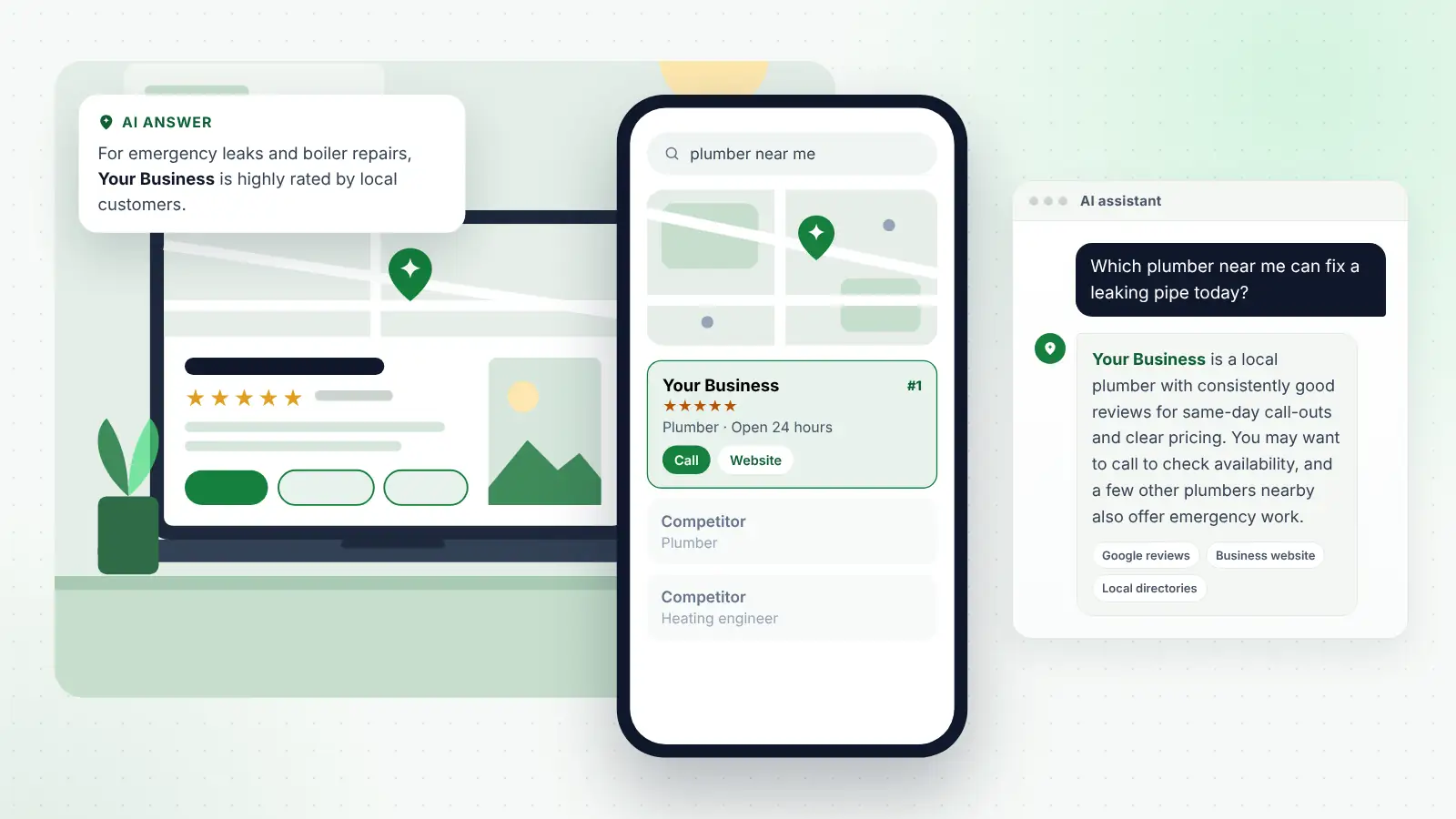
Your Business Profile is not just for Google Maps. It is one of the most widely used sources of business information online, and AI assistants such as ChatGPT, Gemini, Perplexity and Copilot often lean on it, alongside your website and reviews, when someone asks who to call.
Questions to AI tools tend to be more detailed than typed searches. Someone might ask “Which plumber near me does weekend call-outs and is good with older heating systems?” An assistant can only answer that confidently if the information exists somewhere it can read. A complete services list, accurate hours, specific reviews and a website that explains your work all help. Keeping your details identical across your profile, website and directory listings matters too, because conflicting information makes any system less confident about recommending you.
Avoiding suspensions and handling them if they happen
A suspended profile disappears from Maps or loses the ability to be edited, which can cut enquiries overnight. Most suspensions follow a guideline breach, a suspicious change or a pattern that looks like spam.
Common causes
- Keywords or locations added to the business name.
- A virtual office, PO box or address without real presence.
- Multiple profiles for the same business.
- A sudden change of name, address or category, especially soon after verification.
- A service area that is unrealistically large.
- Being in a category Google watches closely for spam, such as locksmiths or some trades.
What to do if you are suspended
- Read the notice in your profile carefully to understand whether it is a suspension, a restriction or a verification request.
- Fix any guideline issues first, such as removing keywords from the name or correcting the address.
- Submit an appeal from within your profile.
- Provide evidence that your business is genuine at the address or in the area claimed. Photos of permanent signage, a branded vehicle, a utility bill or business bank statement in the business name, and your website are typical.
- Be patient and avoid creating a new profile in the meantime, which tends to make things worse.
Google’s own guidelines for representing your business on Google are the reference to check whenever you are unsure whether something is allowed.
Keeping your profile in good shape
A profile is not something you complete once. Set aside a little time each month to check the details are still correct, review any suggested edits from Google, add photos and a post, and reply to new reviews. Look at the performance figures to see how many calls, direction requests and website visits the profile generated.
If keeping on top of this is unrealistic alongside running your business, local SEO packages that include ongoing profile management can take care of it, along with the citation and website work that supports it.
Tip
Every few months, search for your own business on Google Maps from your phone and read your profile as a stranger would. Outdated photos, wrong hours and unanswered reviews are much easier to spot that way.
Frequently asked questions
How long does it take for profile changes to affect rankings?
Simple corrections, such as fixing a wrong category or adding missing services, can make a noticeable difference within a few weeks. Broader improvements to visibility usually build over three to six months, alongside reviews, citations and website work.
Can I have more than one Google Business Profile?
Only if you have more than one genuine location with its own staff and premises. A single business serving several towns should use one profile with a service area, not a profile for each town.
Why does Google keep changing my business details?
Google accepts suggested edits from users and from its own data sources. Sometimes these are applied automatically. Check your profile regularly, reject incorrect suggestions and make sure your website and directory listings show the same details, which reduces conflicting data.
Should I put keywords in my business description?
Describe your services naturally and you will include the relevant words without trying. Stuffing the description with keywords does not help and makes the profile less readable for customers.
Is it worth paying for Google Ads to appear on the map?
Ads can appear above the map results and can be useful for immediate enquiries, but they do not improve your organic position. Many businesses use both: ads for quick visibility, and profile work for longer-term results that do not stop when spending does.
Final thoughts
An optimised Google Business Profile is built from accurate details, honest categories, a sensible service area, a complete services list, regular photos and attentive replies. None of it is complicated, but it rewards care and consistency, and it is easy to undo with shortcuts. Work through the steps in this guide, keep within Google’s guidelines, and revisit your profile every month. Over time, that steady attention is what separates the businesses customers find first from the ones they never see.